PlantUML draws diagrams from text. Instead of
dragging boxes around an editor, you write Customer -> Shop: Place order
and PlantUML lays out the sequence diagram for you. Markdown is where most
documentation lives. Put the two together and the diagram’s source sits in
the same file as the text that explains it: it is reviewed in the same pull
request, searched with the same tools, and never drifts away from the
document because someone lost the original drawing.
This tutorial shows how: write the diagram inside the Markdown file, run PlantUML on that file to generate an image, and link the image from the document. The approach comes from a gist by Noam Tamim.1 Every command below was run with PlantUML 1.2026.9 on OpenJDK 17, on 21 October 2026, and the GitHub behaviour was checked against GitHub’s own Markdown renderer the same day.
Step 1: Install PlantUML
PlantUML is a Java program, distributed as a single .jar file. It needs
Java installed; the project recommends Java 11 or later.2 Check
with:
java -versionThen get PlantUML itself:
- Any platform: download
plantuml-<version>.jarfrom the project’s GitHub releases and run it withjava -jar plantuml.jar. That is what the commands below use. - macOS and Linux with Homebrew:
brew install plantumlinstalls aplantumlcommand along with Java and Graphviz.3 Anywhere this tutorial writesjava -jar plantuml.jar,plantumldoes the same.
Some diagram types, among them class, component, state and use case diagrams, are laid out with Graphviz. Sequence diagrams, like the one in this tutorial, do not need it. On Windows, PlantUML has shipped with a minimal Graphviz since version 1.2020.21, so nothing else needs installing; on Linux, install Graphviz from the distribution’s packages.4
Step 2: Write the diagram inside the Markdown file
PlantUML does not care what kind of file it reads. Give it any text file
and it looks for blocks that start with @startuml and end with @enduml,
and draws one image per block.5 So the diagram source can sit
in the Markdown file itself, as long as two things are true:
- The block is named. Whatever follows
@startumlon the same line becomes the image’s file name:@startuml checkout-sequenceproducescheckout-sequence.svg.6 Without a name, the image is named after the Markdown file, and a second diagram in the same file gets a sequence number added, which makes links fragile. - The document links the image. A normal Markdown image with the same
name,
, shows the diagram once it has been generated.
That leaves the question of what readers see where the source is. The cleanest answer is a collapsible block: the diagram is on the page, and its source is one click away for whoever wants to change it.
# Checkout
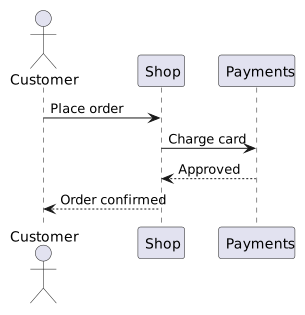
When a customer places an order, the shop charges the card before
confirming:
<details>
<summary>Diagram source</summary>
```plantuml
@startuml checkout-sequence
actor Customer
Customer -> Shop: Place order
Shop -> Payments: Charge card
Payments --> Shop: Approved
Shop --> Customer: Order confirmed
@enduml
```
</details>
<details> and <summary> are plain HTML, which Markdown passes through,
and GitHub renders them as a collapsed section with the source
syntax-highlighted inside. The blank lines around the fenced block matter:
without them, Markdown treats the fence as part of the HTML and shows it as
raw text.
Step 3: Generate the images
Run PlantUML on the Markdown file, asking for SVG output:
java -jar plantuml.jar -tsvg checkout.mdPlantUML writes checkout-sequence.svg next to the Markdown file, one SVG
per @startuml block. The newer spelling --svg does the same, and -o
puts the images in another directory, relative to the source
file:5
java -jar plantuml.jar -tsvg -o diagrams checkout.mdIf you use -o, link the images with the same folder,
. SVG is the better
format for documentation: it stays sharp at any zoom, and it is text, so a
changed diagram shows up as a readable diff.
The result:

Run the command again whenever the diagram changes. The SVG is a build
output that is committed alongside the document, so it is worth checking
the source in CI: java -jar plantuml.jar --check-syntax checkout.md draws
nothing, reports the line of any error, and exits with a non-zero status
(200) when a diagram is broken, which fails the build.5
Step 4: Publish
Commit the Markdown file and the generated SVGs together. GitHub, GitLab and most documentation sites render the Markdown and load the images by their relative paths, so nothing else is needed. To produce HTML locally, any Markdown converter will do, and the images come along because they are ordinary image links.
The HTML comment trick, and why it breaks
The original gist, and many copies of it, hide the source in an HTML comment
instead of a <details> block:
<!--
@startuml first-diagram
Alice -> Bob: Hello
Bob -> Alice: Hi!
@enduml
-->
PlantUML still finds the block, and the comment hides it from readers. It
works for this example. It fails as soon as the diagram contains -->,
which in PlantUML is the ordinary dashed arrow, used for every reply in a
sequence diagram. In Markdown, an HTML comment ends at the first line that
contains -->,7 so the comment closes in the middle of the
diagram and the rest of the source appears on the page as text. Running the
checkout example above through GitHub’s renderer with a comment in place of
<details> shows exactly that: the comment ends at
Payments --> Shop: Approved, and everything after the arrow, from
Shop: Approved down to @enduml and the real closing -->, appears as a
paragraph above the image.
A later version of the gist wraps the source in <div hidden> instead. That
avoids the comment problem, but GitHub removes the hidden attribute when
it renders Markdown, so on GitHub the source is shown anyway.
The comment trick is safe only for diagrams with no --> in them. The
<details> block works for every diagram, and it is the one I use.
Alternatives
- Keep the source in its own file. A
checkout-sequence.pumlnext to the document, with only the image link in the Markdown, avoids every rendering question. The cost is a second file to keep in step with the text. - Mermaid on GitHub. GitHub renders Mermaid diagrams written in a
```mermaidfenced block directly, with no generated image at all. PlantUML is not among the formats it renders.8 For a repository that only needs flowcharts or sequence diagrams on GitHub, Mermaid is less work; PlantUML covers more diagram types and renders the same everywhere because the output is a plain image.
References
Tamim, N. (2019). How to use PlantUML with Markdown [GitHub Gist]. https://gist.github.com/noamtamim/f11982b28602bd7e604c233fbe9d910f ↩︎
PlantUML. (n.d.). Quick start guide. https://plantuml.com/starting ↩︎
Homebrew. (n.d.). plantuml. In Homebrew Formulae. https://formulae.brew.sh/formula/plantuml ↩︎
PlantUML. (n.d.). Installing Graphviz. https://plantuml.com/graphviz-dot ↩︎
PlantUML. (n.d.). Command line. https://plantuml.com/command-line ↩︎ ↩︎ ↩︎
PlantUML. (n.d.). Sources. https://plantuml.com/sources ↩︎
MacFarlane, J. (2024). HTML blocks. In CommonMark Spec (Version 0.31.2). https://spec.commonmark.org/0.31.2/#html-blocks ↩︎
GitHub. (n.d.). Creating diagrams. In GitHub Docs. https://docs.github.com/en/get-started/writing-on-github/working-with-advanced-formatting/creating-diagrams ↩︎